A paper business card has two flaws. It goes out of date as soon as a number or a job title changes, and it ends up at the bottom of a pocket. Meanwhile, your customers look for your WhatsApp, your Instagram, your catalogue and your address in five different places. Business cards brings all of it together on a single page, opened by scanning a QR code.
The module creates a card for your company and one for every member of your team. Each has its own address, its own QR code and a “Save contact” button. You edit it whenever you like: the link and the QR code stay the same.
One page for the company, one for every team member
Open Business cards from the WURUS menu. The company card sits at the top of the page. Below it, the whole team appears, with or without a card. Missing cards are created in one click, already filled in with what WURUS knows about each person: name, job title, phone and email.
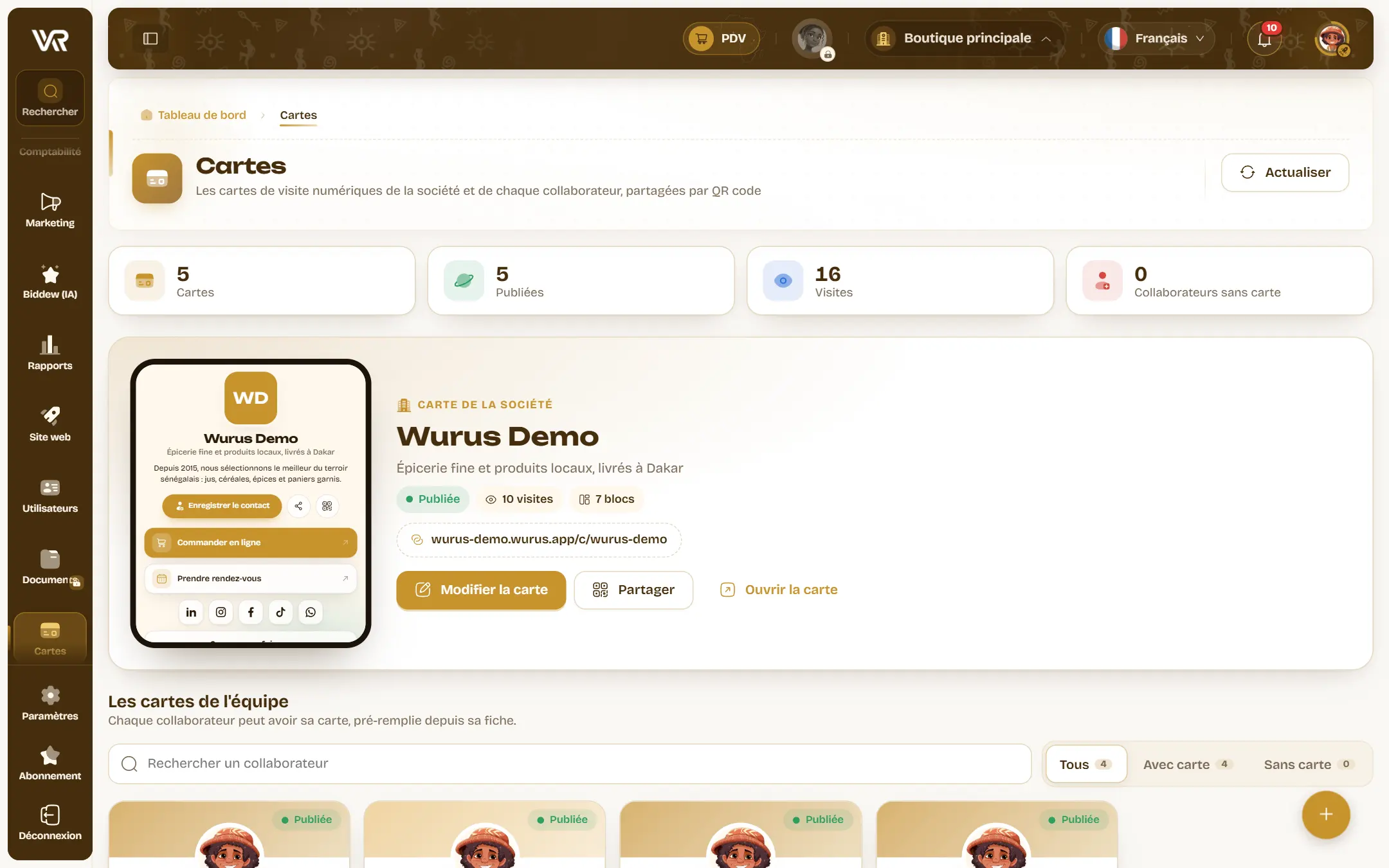
A salesperson's card does not do the same job as the company's. One shows the shop, the activities and the press. The other puts forward a booking link, a catalogue and a direct WhatsApp. Each has its own style, and they all live in the same place, which the company keeps in hand.
Build your card with blocks
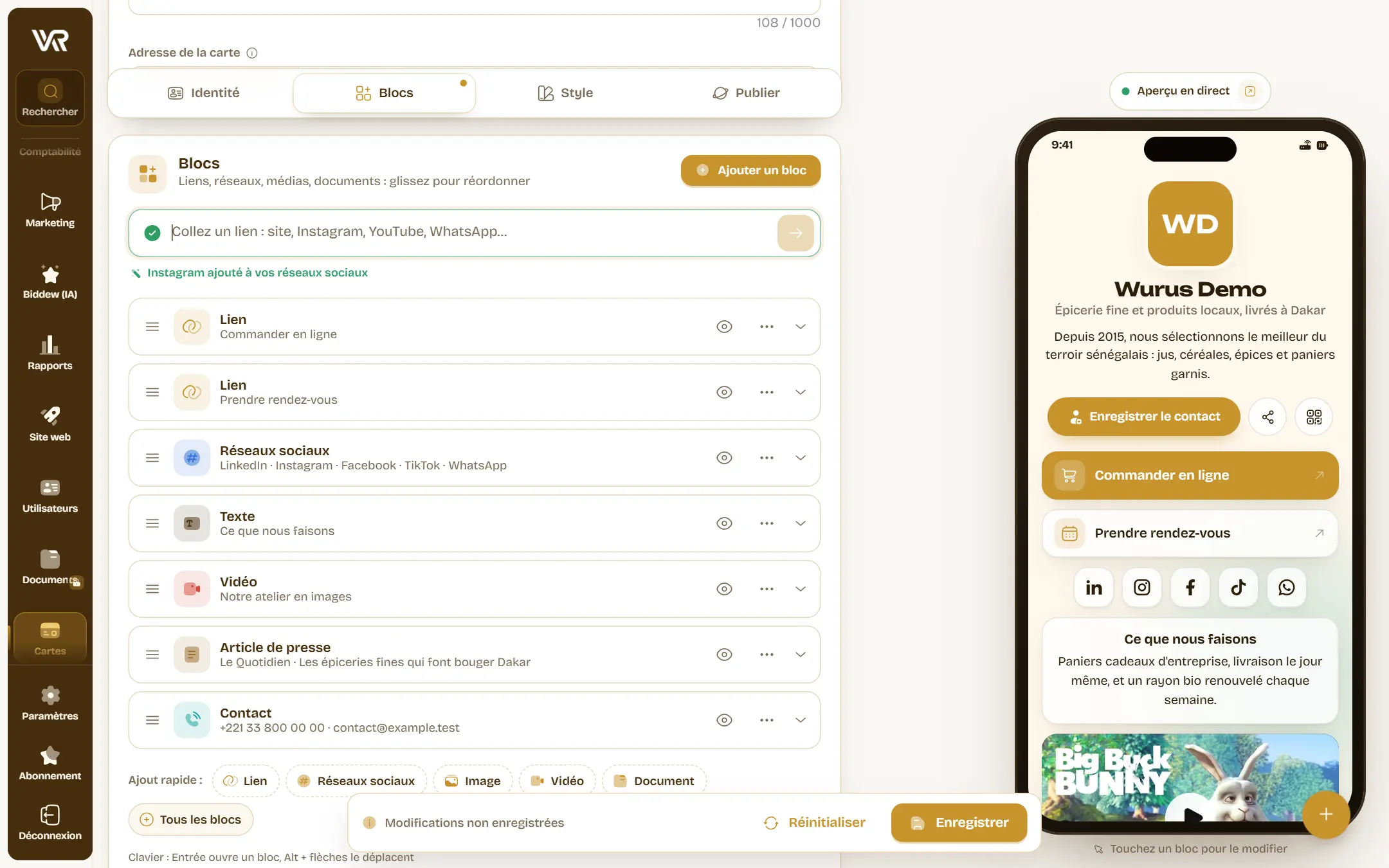
A card is built like a set of bricks. Each block is one part of the page: drag blocks to change the order, hide them with one tap. A phone next to the editor shows the result as you type, and tapping a block in that phone opens it for editing.
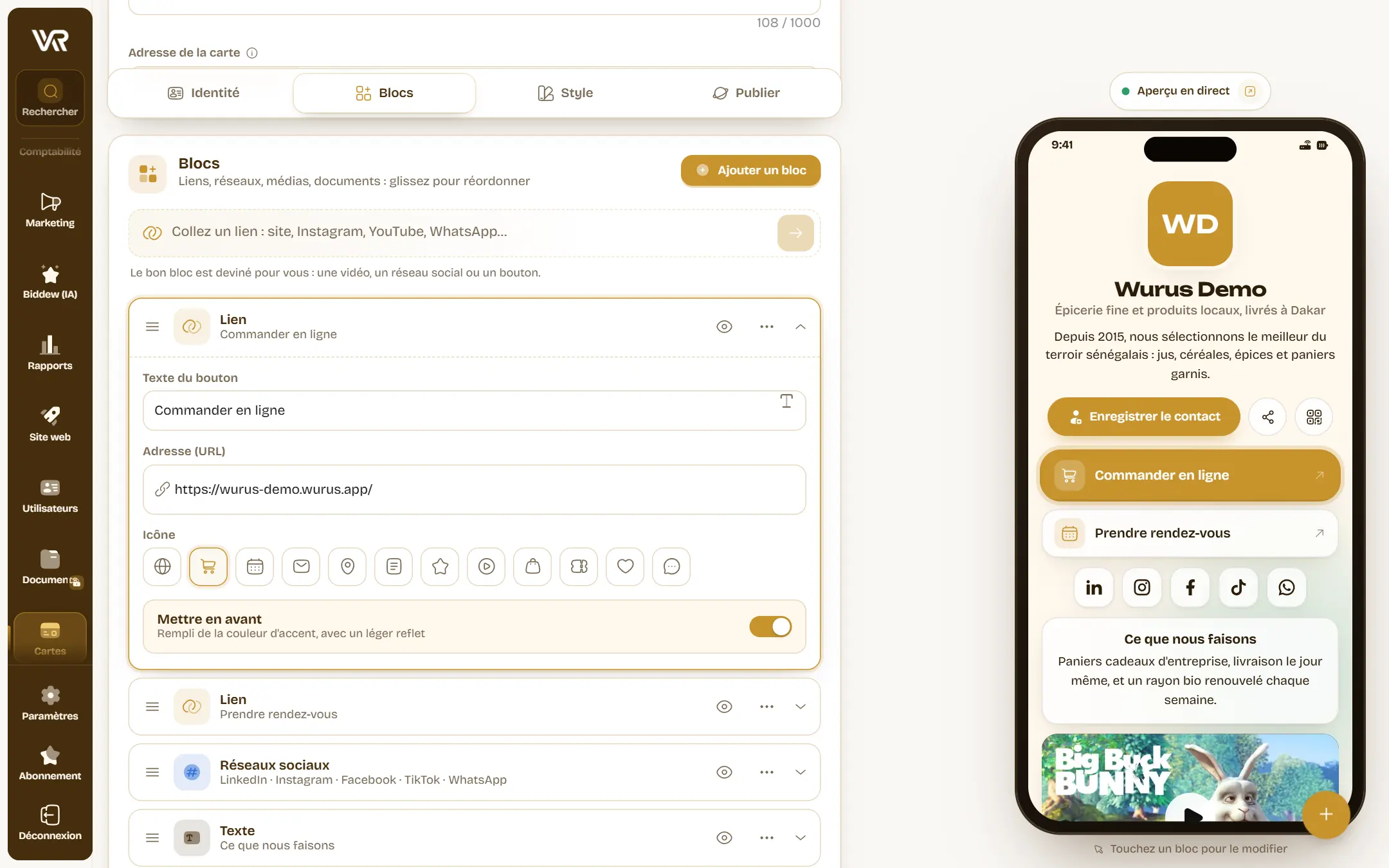
- Link: a button to your shop, your website or a booking page, with its icon, highlighted if you wish.
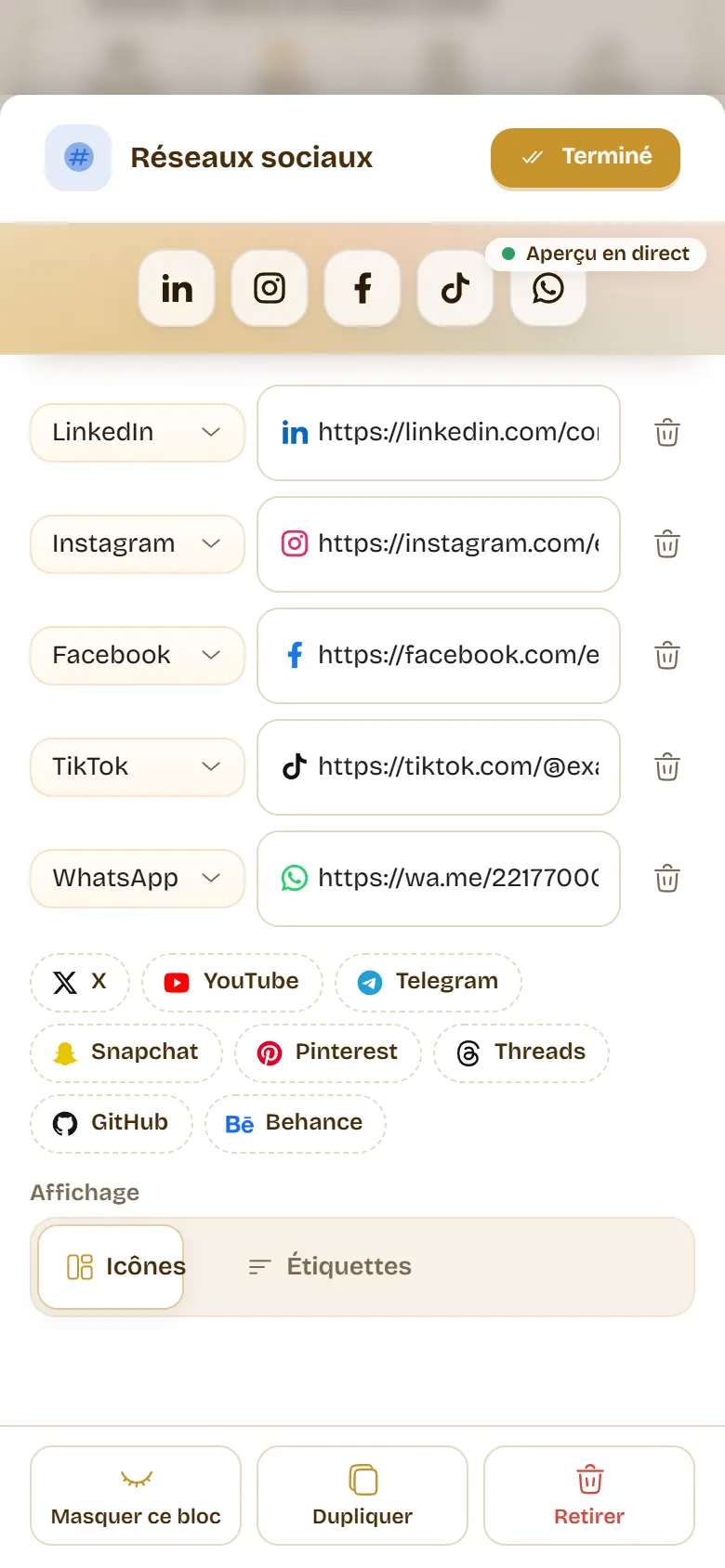
- Social networks: fifteen networks, from LinkedIn to TikTok, as icons or labels.
- Text: your activities, your values, your opening hours.
- Image and Gallery: one photo with its caption, or up to twelve photos to swipe through.
- Video: YouTube or Vimeo, played on the page. The player only loads when tapped, so the page stays light.
- Document: a brochure or catalogue taken from your Documents (GED).
- Press article: what the media say about you, with source and date.
- Contact: call, WhatsApp, email, website and address, in one tap.
Paste a link, WURUS works out the rest
No need to pick a block type first. Just paste an address. A YouTube video becomes a video block, an Instagram link joins your social networks, and a Calendly link becomes a “booking” button with the right icon. A message confirms what was added, and a mistyped address is flagged before it is published.
Your style in one tap
Six ready-made styles set colour, background and button style in one go: Wurus gold, Midnight, Lagoon, Bloom, Savanna and Studio. You can also set everything yourself: accent colour, background, buttons, photo shape, and whether to show the QR code and the “Save contact” button.
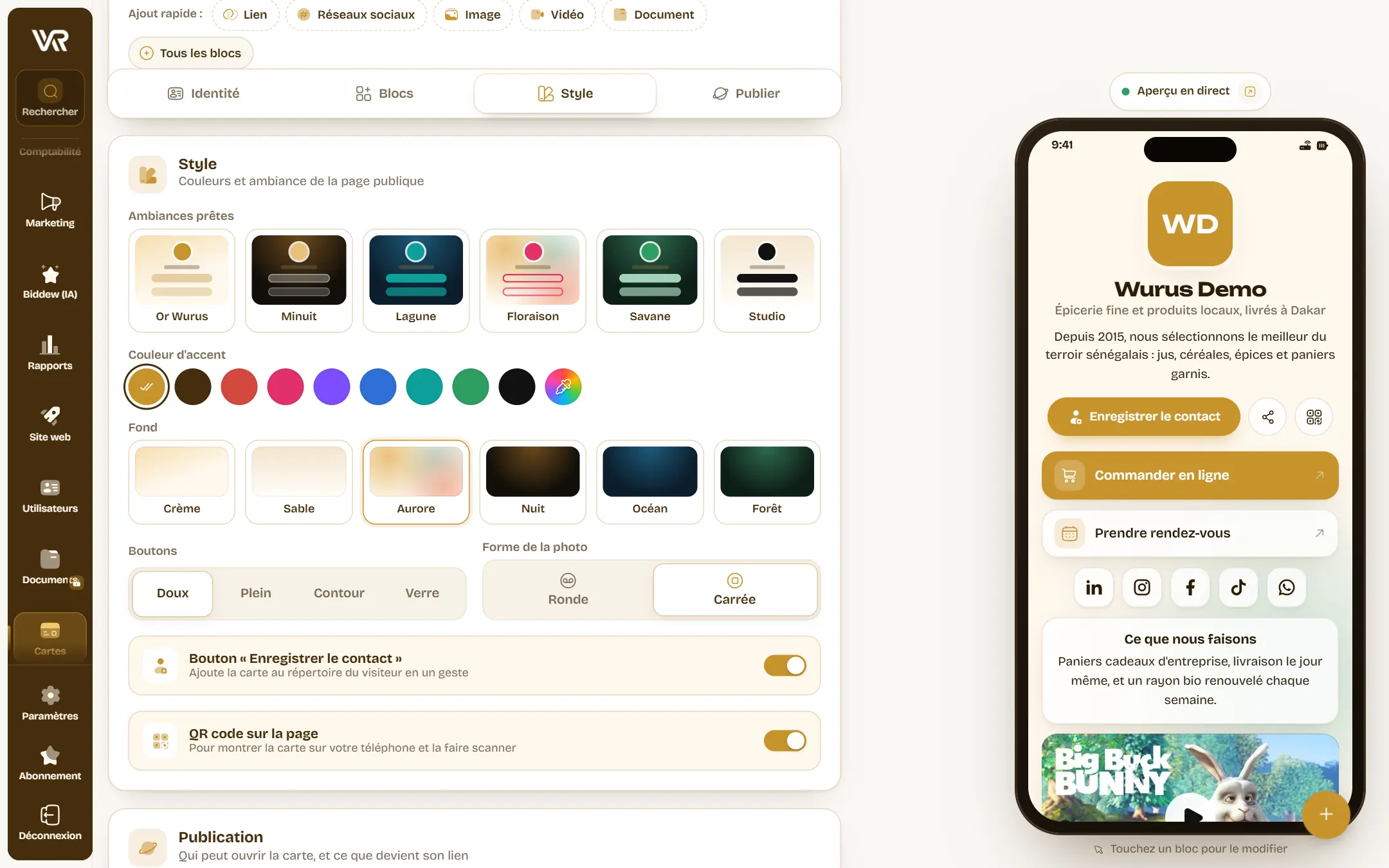
What your contacts see
The QR code opens the card in the phone's browser, in a second, with no account and no app. It is served at your workspace address: your-company.wurus.app/c/your-name. Blocks appear as you scroll, and a small bar keeps your name and the “Save” button within thumb's reach.
Share it everywhere
The share panel is the same everywhere. It offers the QR code as a print-ready image, the link to copy, sending by WhatsApp or email, and the contact file. It also shows how many times the card has been visited.
The company card, its QR code and its link are in Settings, General tab: open, share or edit the card from there.
The “Business card” section of the profile shows the card and its QR code. The staff list also offers a “Business card” action.
From your phone too
The editor is designed for thumbs. On a phone, a block opens in a sheet at the bottom of the screen, with its live preview above. Arrows and a long press move it, and a “+” between two blocks inserts a new one in the right place. Enough to add a link between two meetings.
You stay in control
- Protected documents. Only documents with the “Company” access level can be published on a card. A restricted or confidential file never leaves your Documents.
- Publish or take down. A card can go offline at any time: its link then shows a page not found. Deleted, it goes to the Trash and gets its address back if you restore it.
- Rights by role. Viewing, creating, editing and deleting cards are four permissions, given to the roles you choose.
- Senegalese framework. A card only publishes what you put on it, and data processing follows law 2008-12 on personal data protection.
Four ideas to use it tomorrow
-
1
At the counter and in the window. Print the company QR code on a table tent: customers leave with your WhatsApp, your opening hours and your online shop.
-
2
For your salespeople. Each one shows their card on their phone: the prospect saves the contact and books a meeting right away.
-
3
At trade fairs. A QR code on the stand instead of paper cards: catalogue, presentation video and press articles in one place.
-
4
Everywhere online. Add your card's link to your email signature, your Instagram bio or your WhatsApp status.