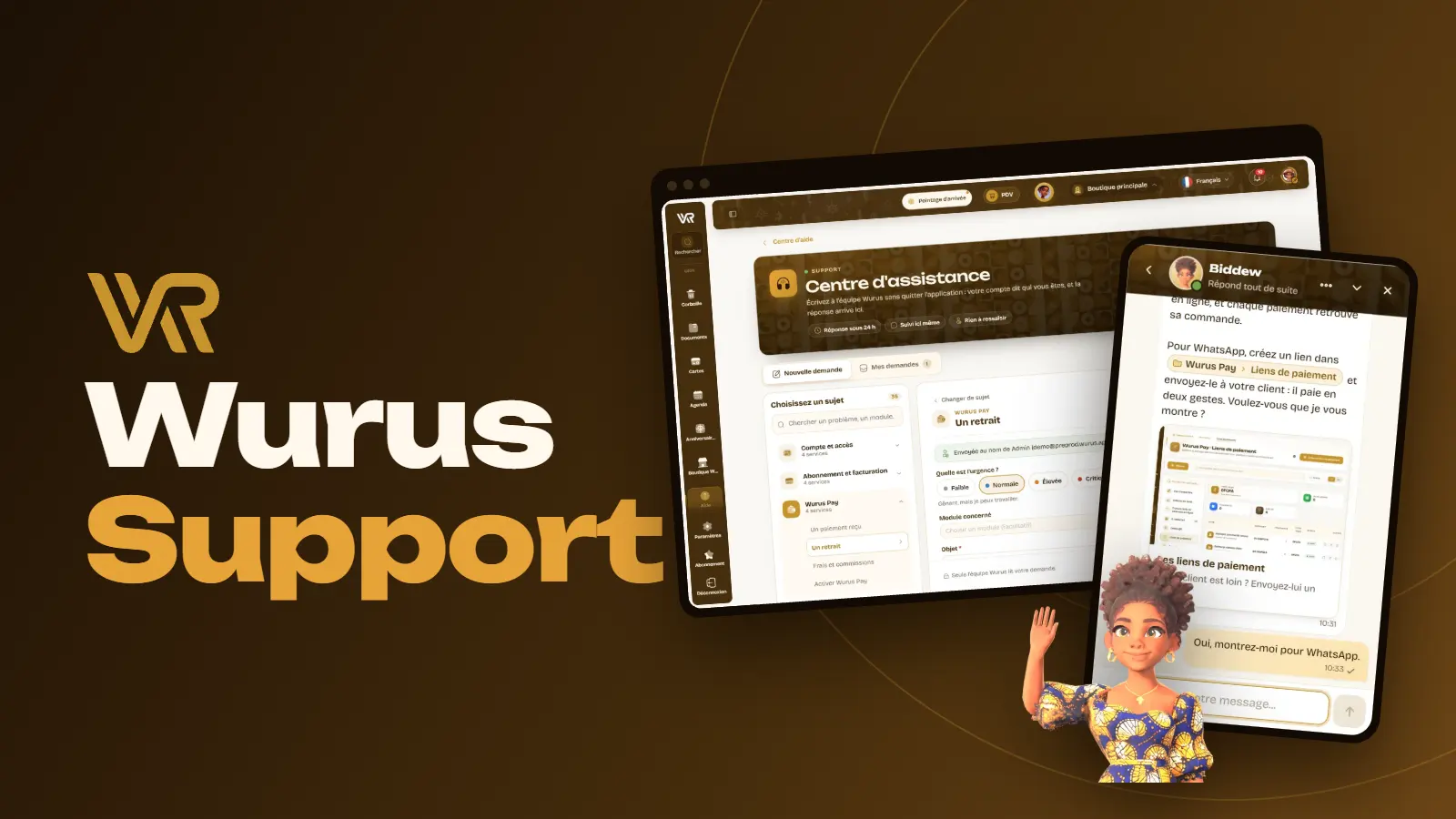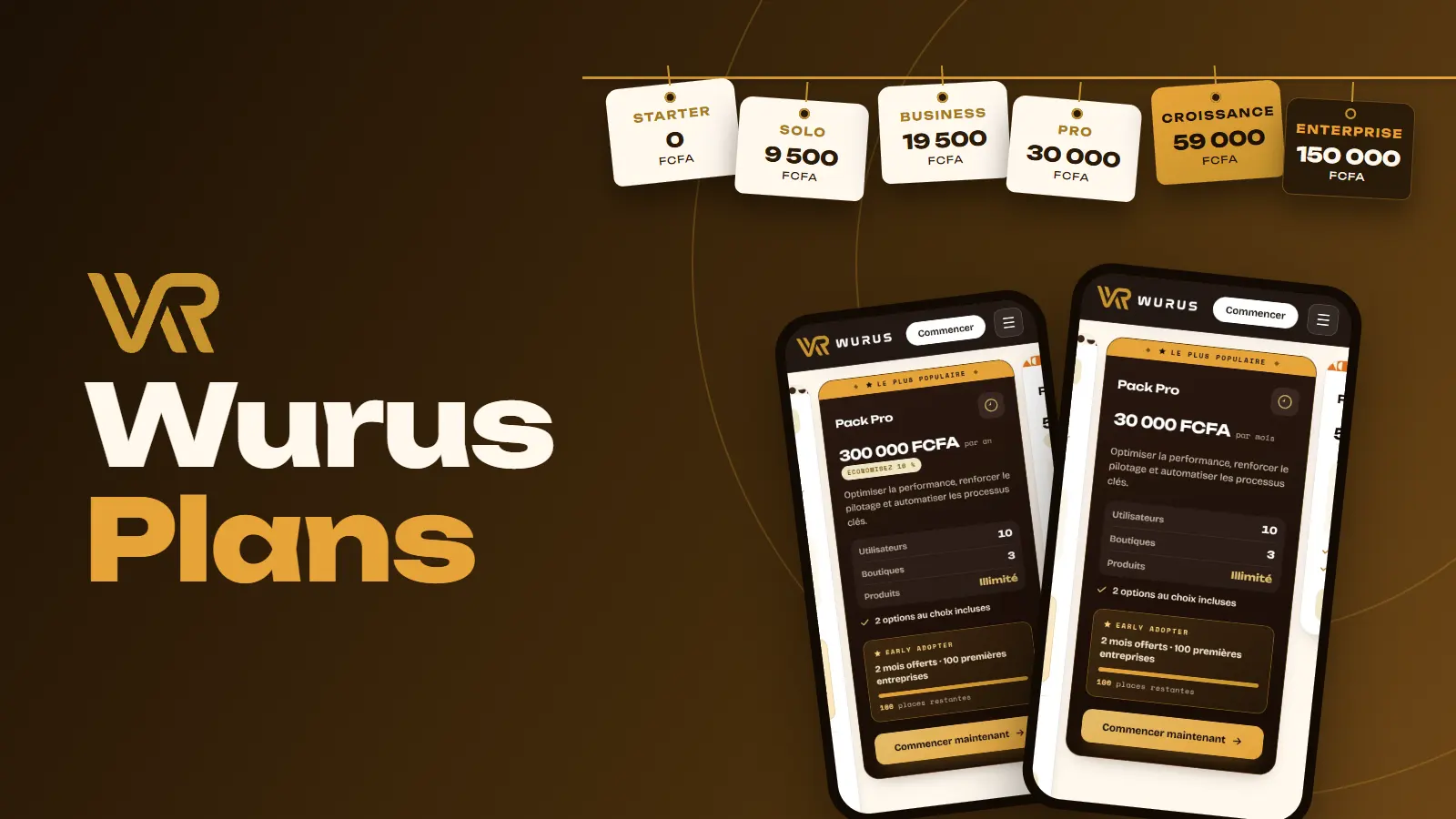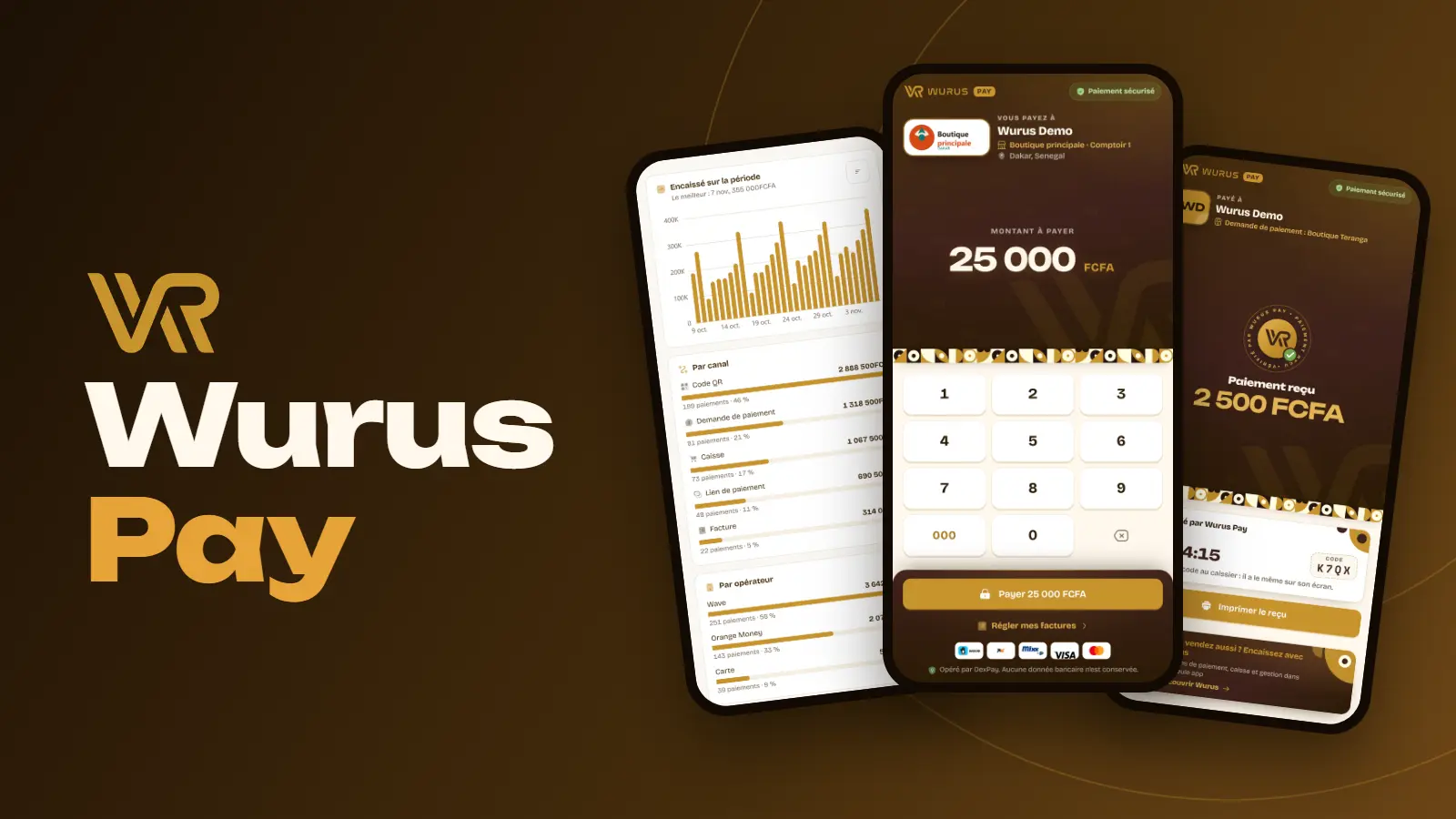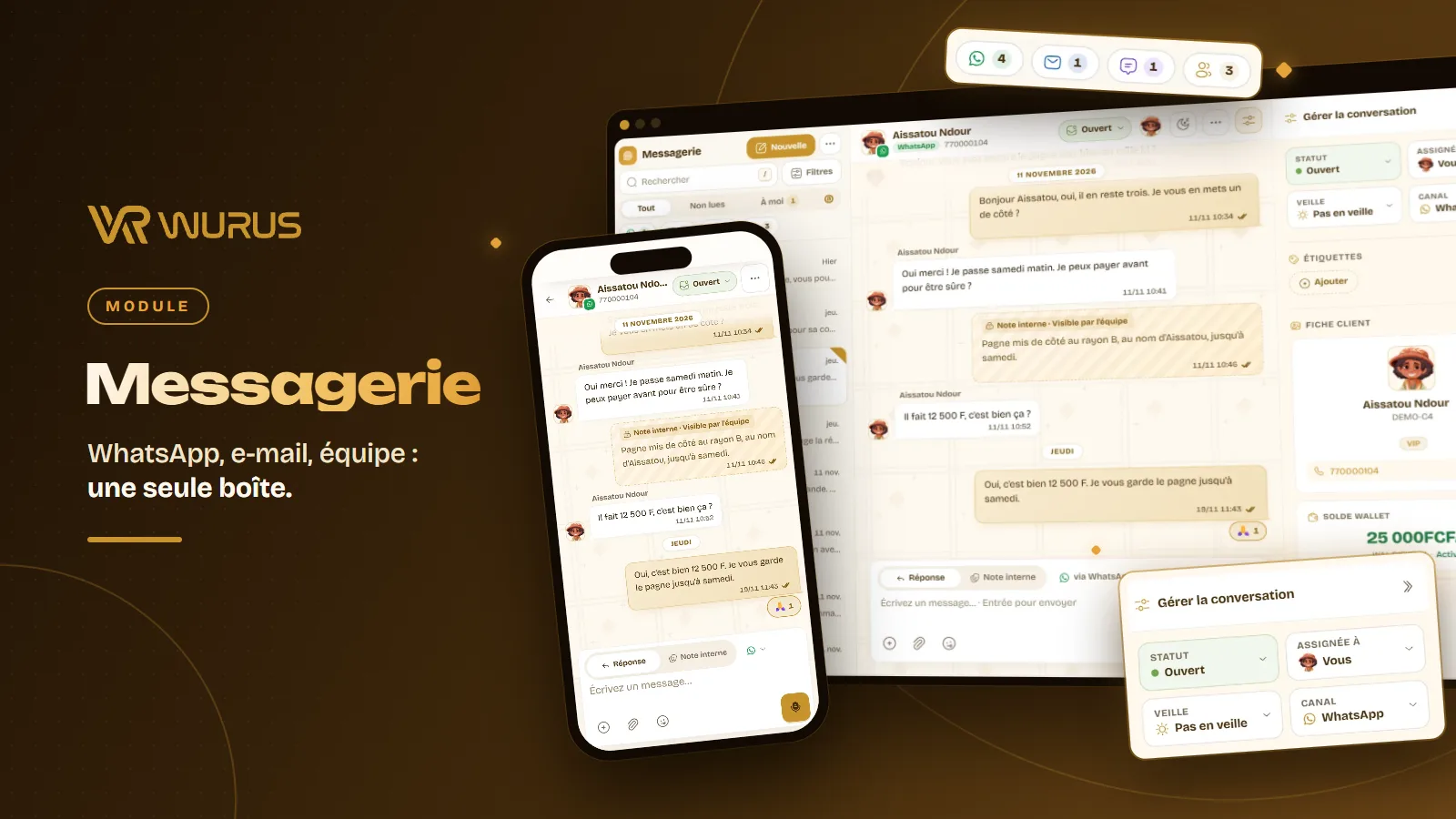
A customer asks on WhatsApp whether the blue wax fabric is still available in size M. Another replies to your quote by email. Your sales staff pass instructions around in a personal WhatsApp group. By evening, nobody knows who answered whom. The Wurus Inbox brings all of it into one place, shared by the team: every conversation has someone looking after it, a status, a watched deadline, and the customer’s record alongside.
Why one inbox
When messages live on the owner’s phone, customer service stops when the battery does, and an absent salesperson takes their conversations with them. The Inbox turns customer conversations into a team inbox: everyone whose role allows it can see them, and nobody keeps a customer to themselves. Conversations between colleagues (direct messages, and groups of up to a hundred people) stay with their members.
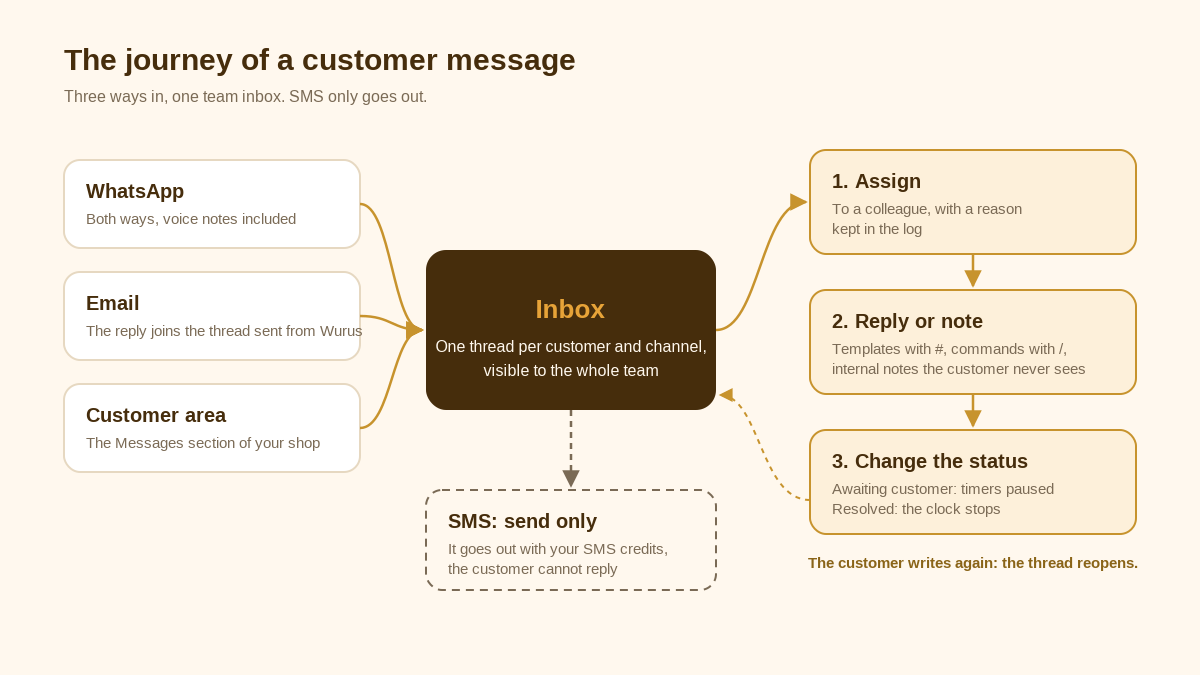
Your customers come in through three doors. WhatsApp, both ways, through the company’s connected number, photos and voice notes included. Email, both ways too: each conversation has its own reply address, and the customer’s answer lands in the right thread. And the customer area of your online shop: if you open its Messages section (closed by default, in the shop console, “Customer area” tab), signed-in customers write to you about an order or a quote, and your reply shows up in their account.
The list: knowing where to look
At the top, the Inbox title, the unread count and the New button. Below, search (the / key on a computer), which finds a contact, a colleague or a message. Then All, Unread and Mine, each with its counter, your mentions, and one chip per channel to keep only that one.
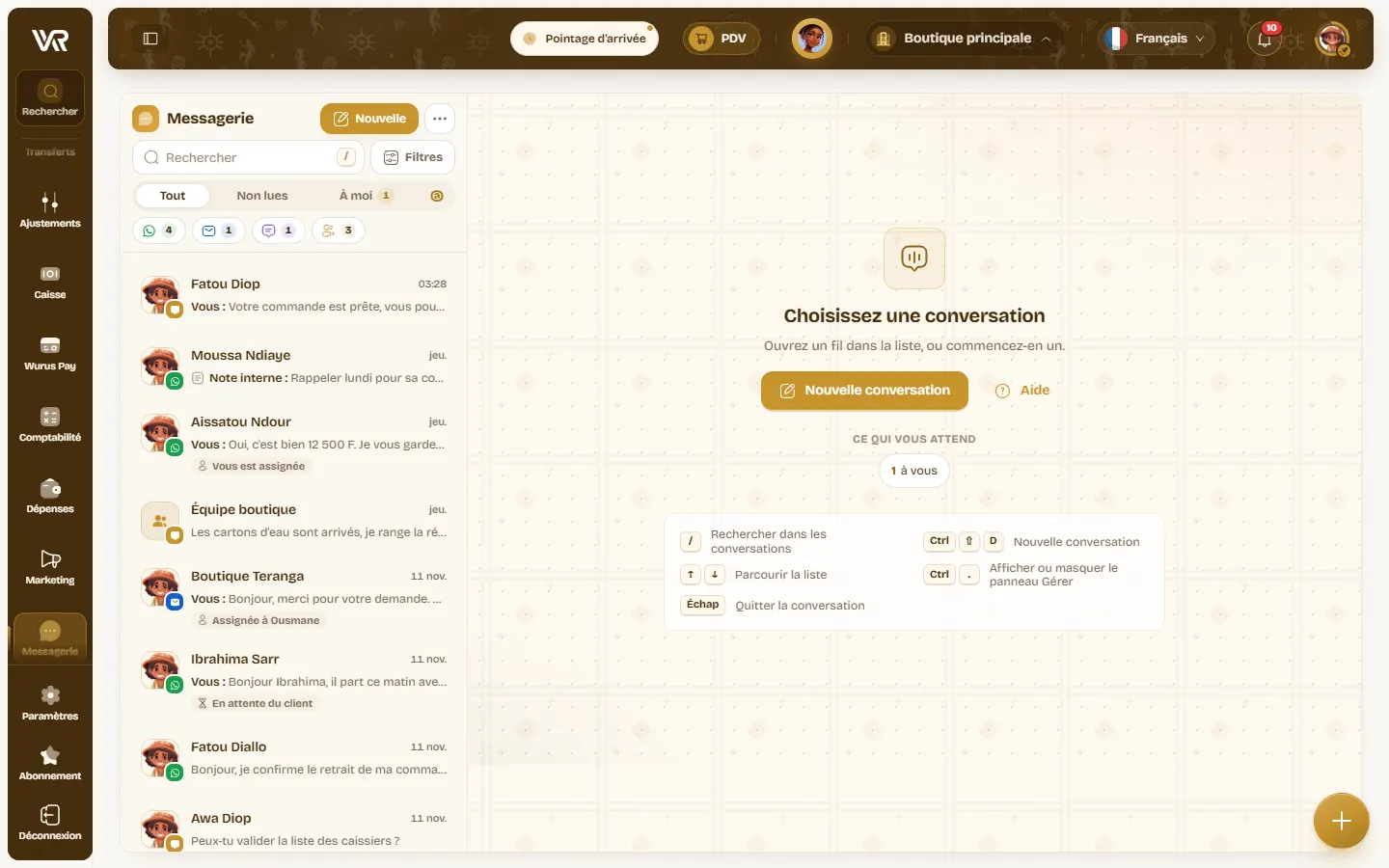
Each conversation fits on two lines: who is writing and when, then the last message. A third line appears only for the most pressing signal: a deadline passed or close (“Reply overdue”, “Reply expected within…”), a snooze, a customer who owes you an answer, or the assignee. On hover, three quick actions: mark read, resolve, snooze. On a phone, swipe the row right or left, with six seconds to undo.
Filters, and your saved views
The Filters button gathers status, tag, assignee (me, nobody, a colleague), deadline (passed, within the hour), snooze and sort order. Active criteria stay visible under the search, and each one comes off with a click.
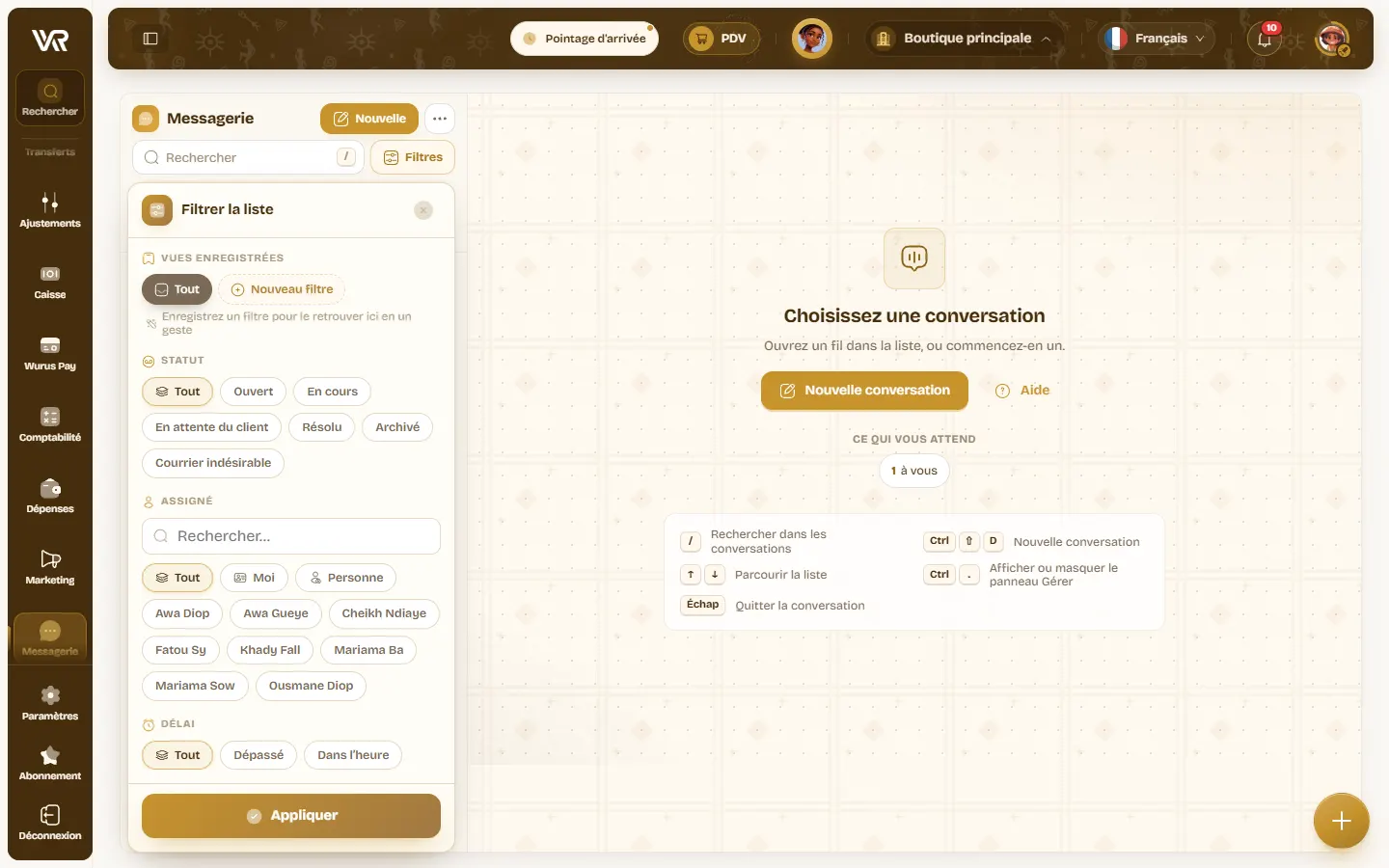
A combination you use every day can be saved as a view, at the top of the same panel. It keeps the criteria and the sort order. A view starts out personal; to offer it to the whole team it must be made public, and only an administrator can do that. The team’s views stay few, and chosen.
The thread, and the Manage panel
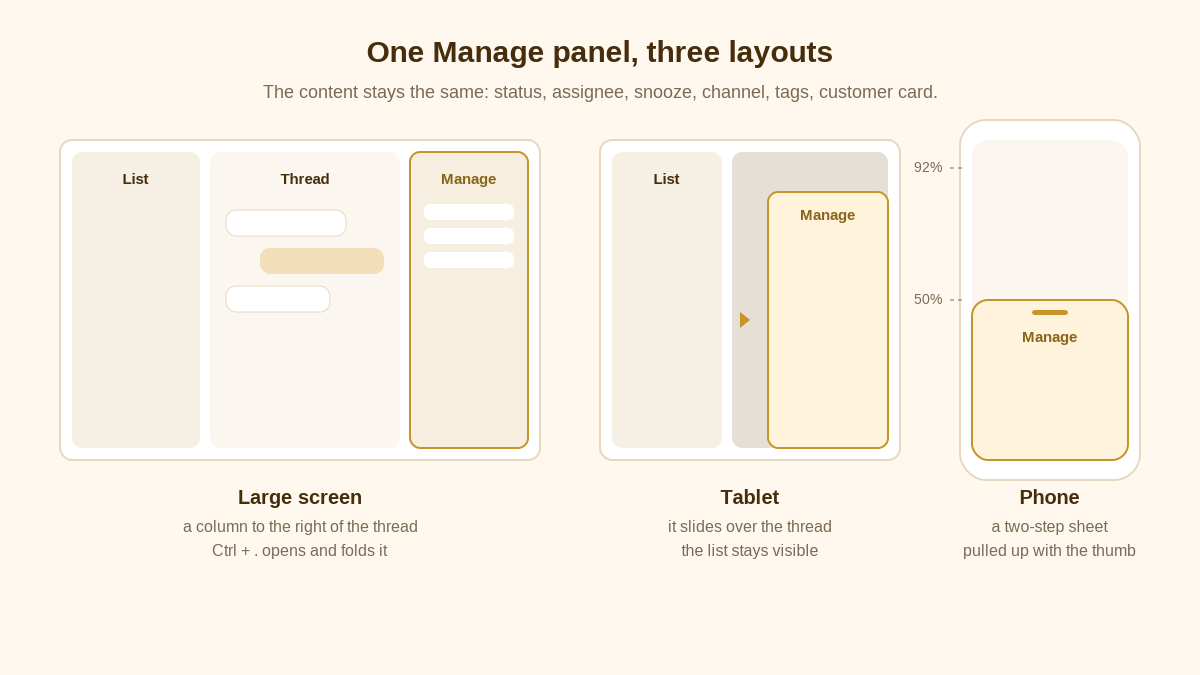
In the thread, messages from the same person follow one another, time and delivery status sit inside the bubble, and a failed send says so, with “Retry”. Everything you can set lives in the Manage panel, on the right: status, assignment, snooze, channel, tags, deadlines, customer record and recent activity.
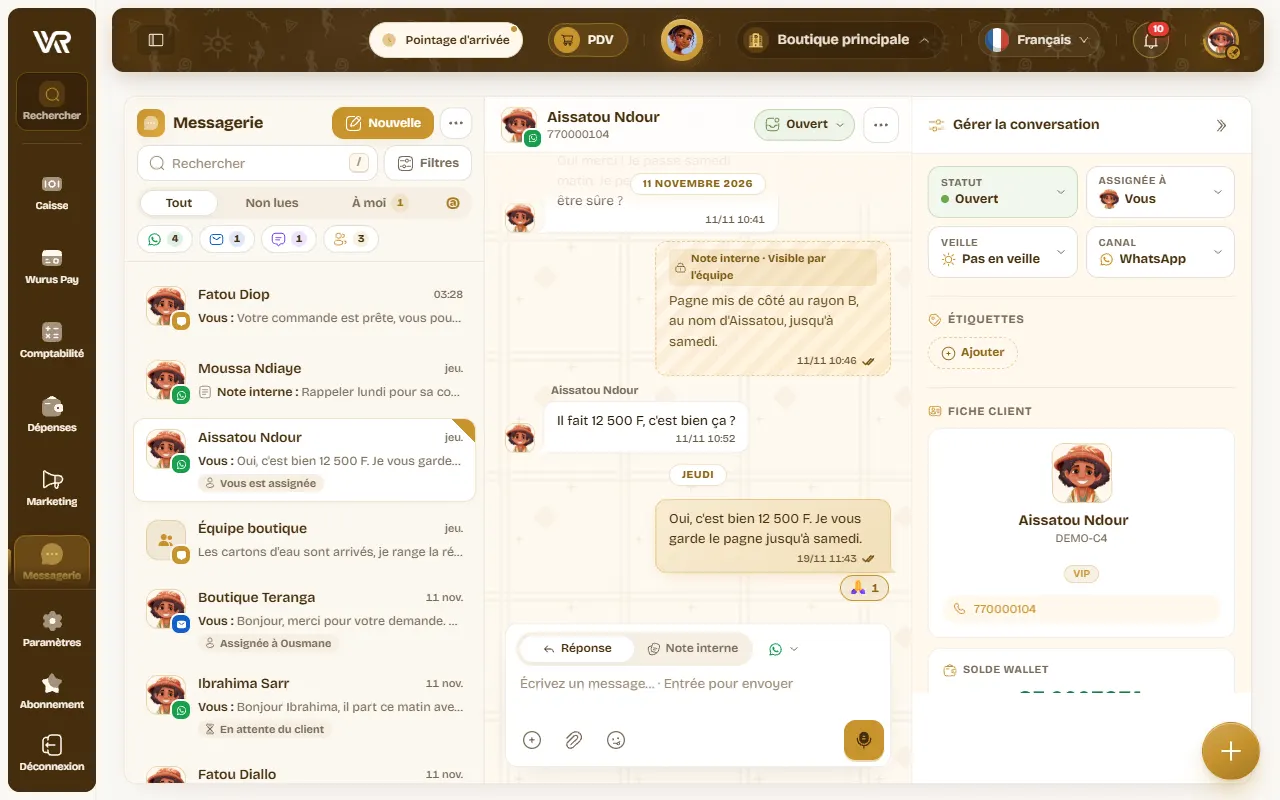
Assigning says who looks after the customer. An assignment carries a reason, kept in the log; it becomes mandatory as soon as you change the assignee of a conversation that already has one, even when it is you. The assignee is notified, and is notified again when a colleague replies or writes a note on their thread. Six statuses say where the conversation stands:
- Open and In progress: to be handled, the clocks are running.
- Awaiting customer: the ball is in their court, the clocks are paused.
- Resolved: done. If the customer writes again, the conversation reopens.
- Archived: put away. A new message opens a new conversation.
- Spam: stays put, even if the sender writes again.
Six ready-made tags are there from the first time you open the Inbox. Their names are in French, even in the English interface (VIP, Urgent, Litige, Support, Vente, Recouvrement), and you can create your own, each with its colour. The customer record shows their wallet, credit limit, unpaid invoices and recent orders; an unknown number becomes a customer in one step. And a conversation can switch channel, from WhatsApp to email for instance, without losing its history.
Response deadlines, and who gets told
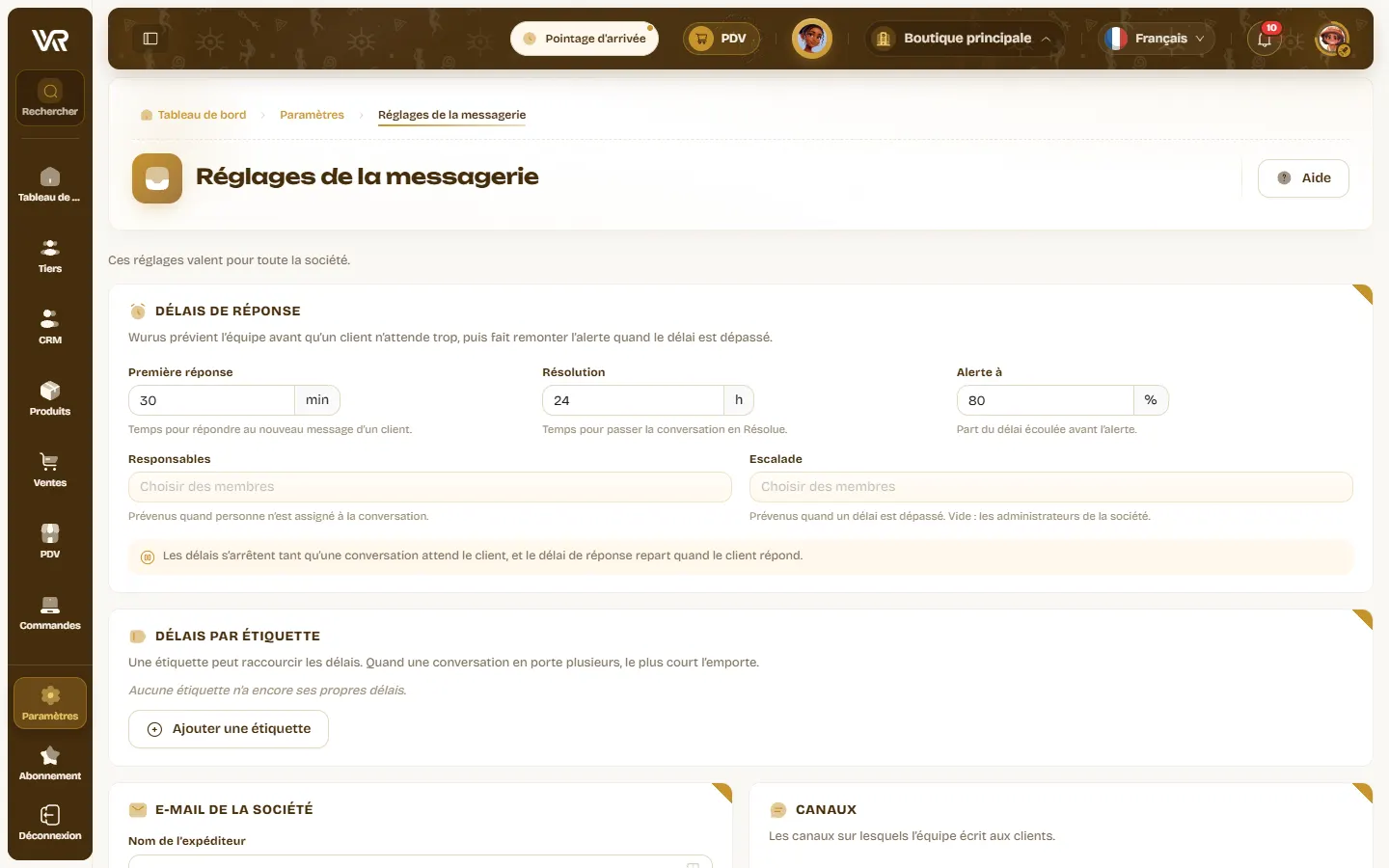
Every customer conversation carries two clocks. First response stops at the team’s first reply (an internal note does not count); resolution stops when the conversation is Resolved. By default: 30 minutes and 24 hours. The company sets these times, and can shorten them for some tags; the shortest wins.
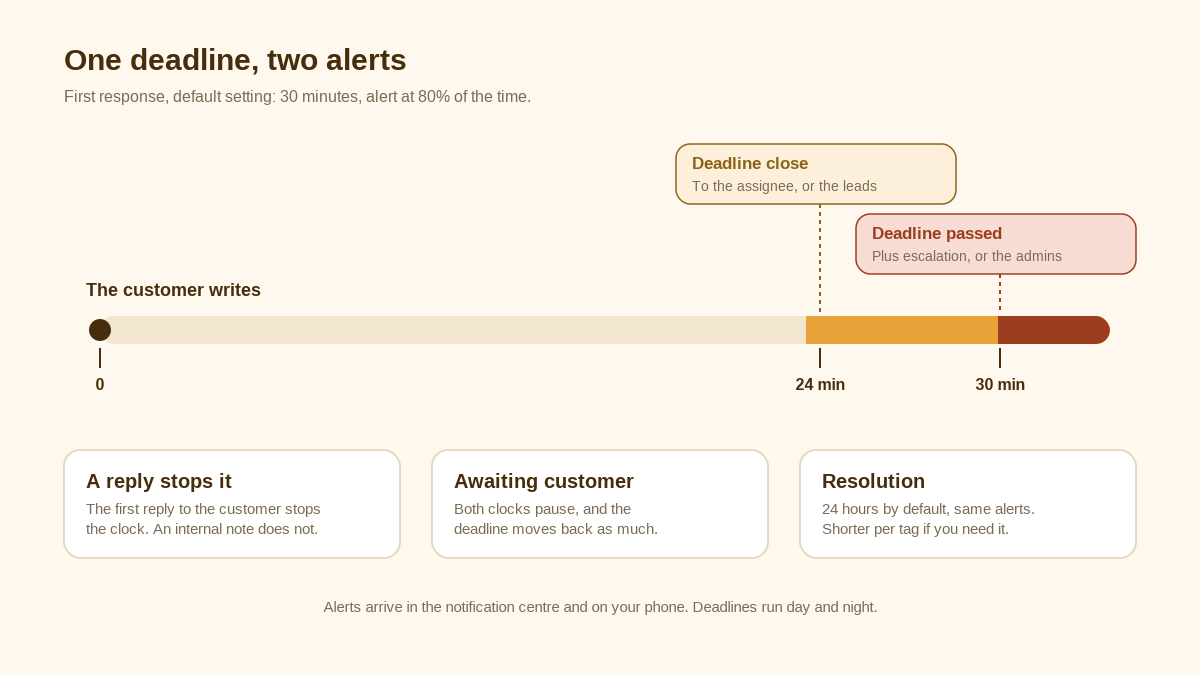
At 80% of the time (an adjustable threshold), a “Deadline close” alert reaches the notification centre and the phone of the assignee, or of the designated leads. When the time is up, “Deadline passed” tells the same people, plus the escalation list, or failing that the company’s administrators. Beyond three alerts in an hour, each person gets a summary instead. Email for these alerts can be turned back on in Settings, Notifications.
Writing: reply, note, templates and commands
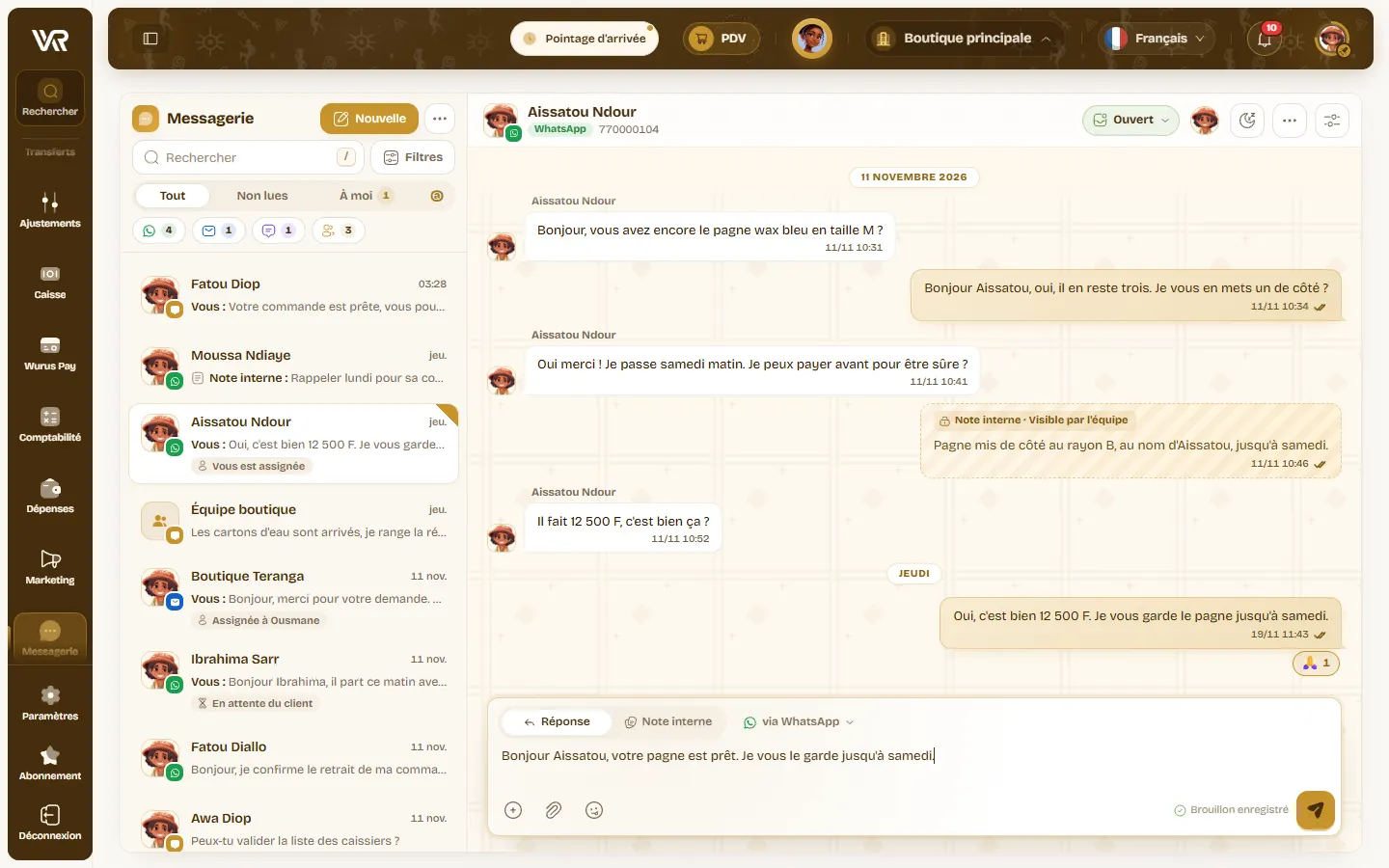
The composer first says what you are writing. A Reply goes to the customer on the channel shown (“via WhatsApp”). An Internal note stays between colleagues: a promise made, a commercial gesture. It never goes out on any channel. With the field empty, the send button becomes a microphone: the voice note reaches your WhatsApp customer as a voice message.
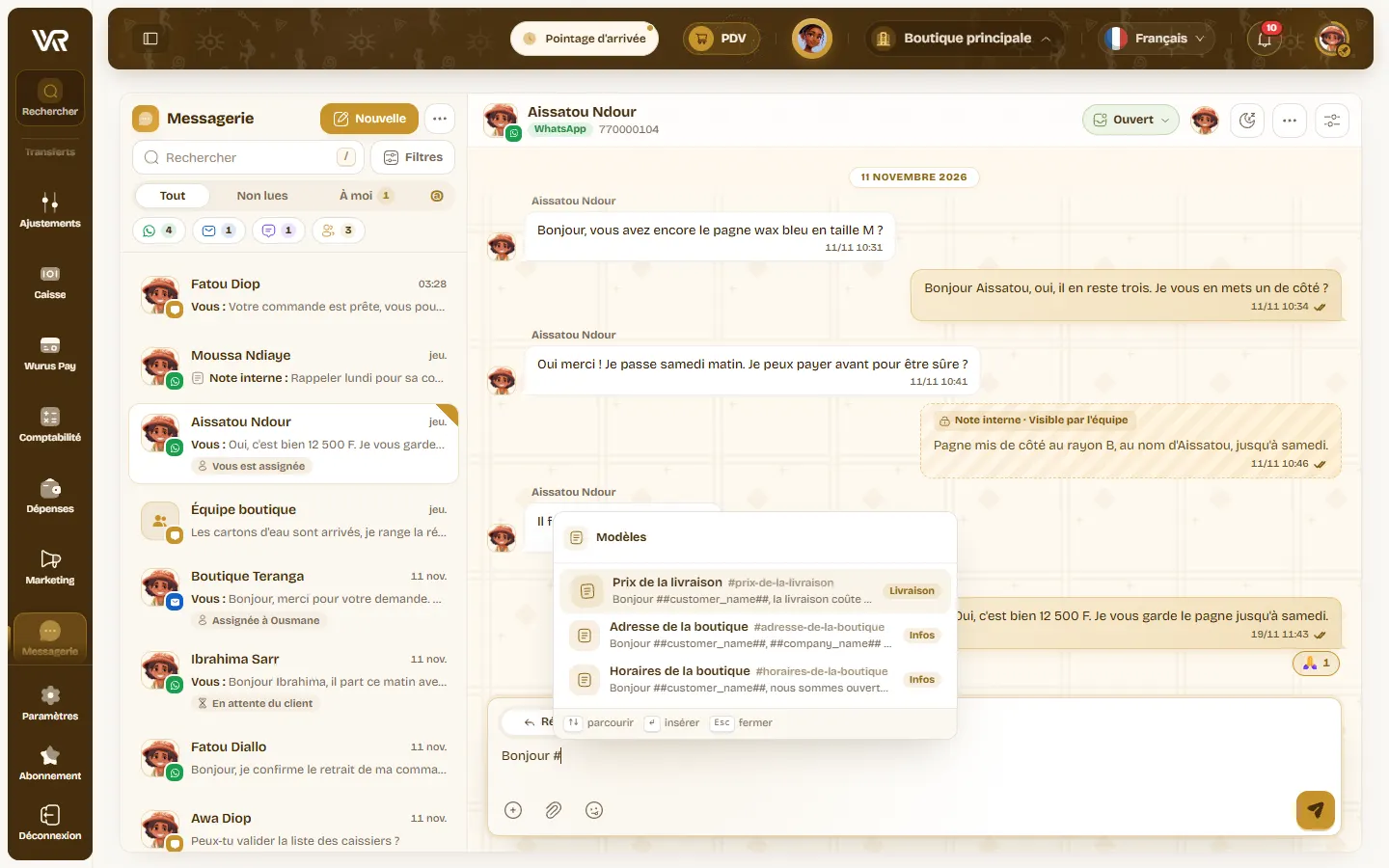
Type # to insert a template: opening hours, address, delivery price. A template is personal, team-wide or company-wide, and its variables fill themselves in: ##customer_name## becomes the customer’s name. Type @ to mention a colleague, who is notified, or to cite an order, an invoice, a product: you are only offered what your role lets you see.
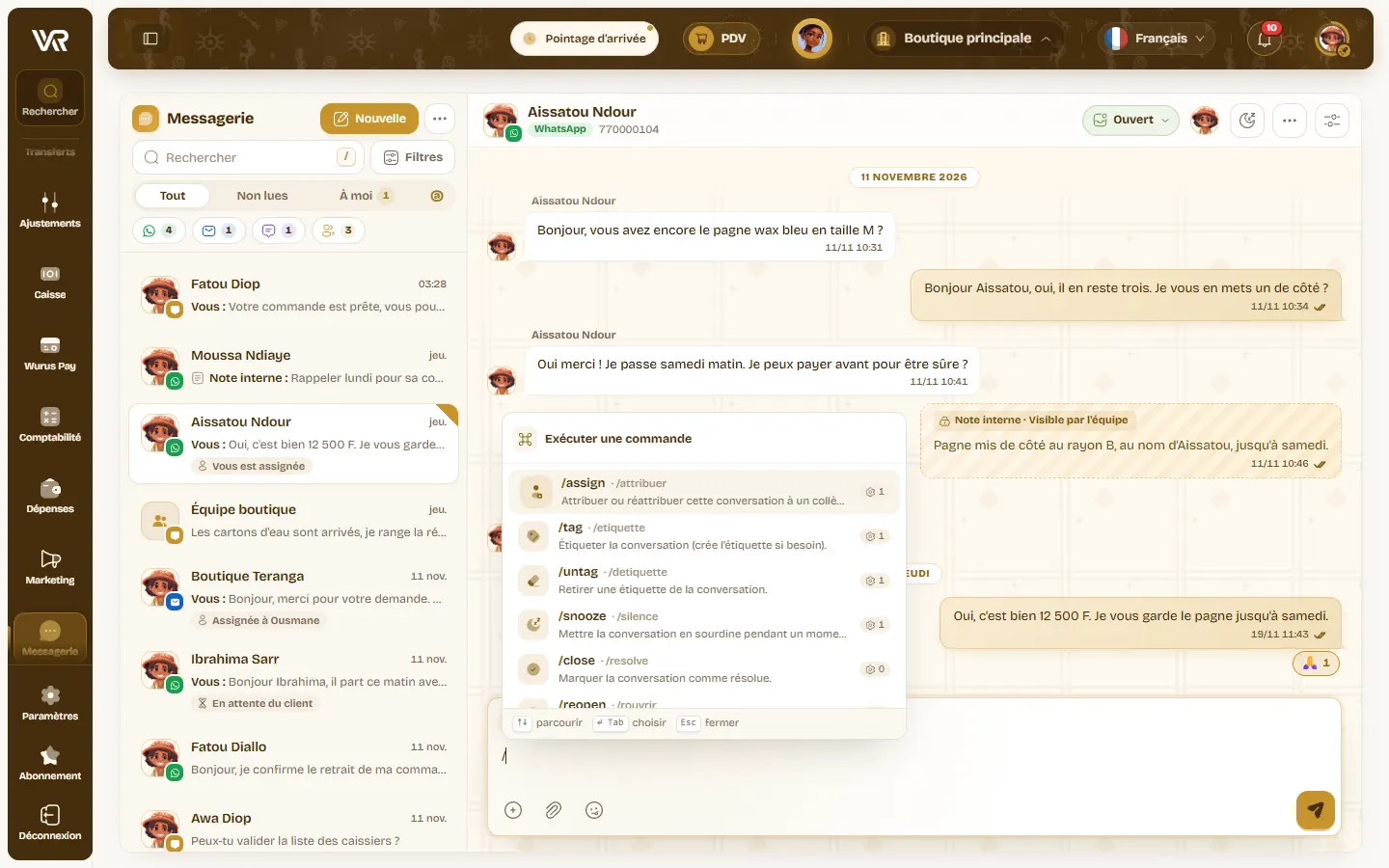
Type / for a command. Some tidy the conversation (/assign, /tag, /snooze). Others read your data: /order-status shows the customer’s last three orders, /wallet-balance their wallet, /stock a product’s stock. Three of them move money: /invoice sends the invoice as a PDF, /payment a Wurus Pay payment link, /credit-wallet credits the wallet.
Writing to someone: a single “To:” field
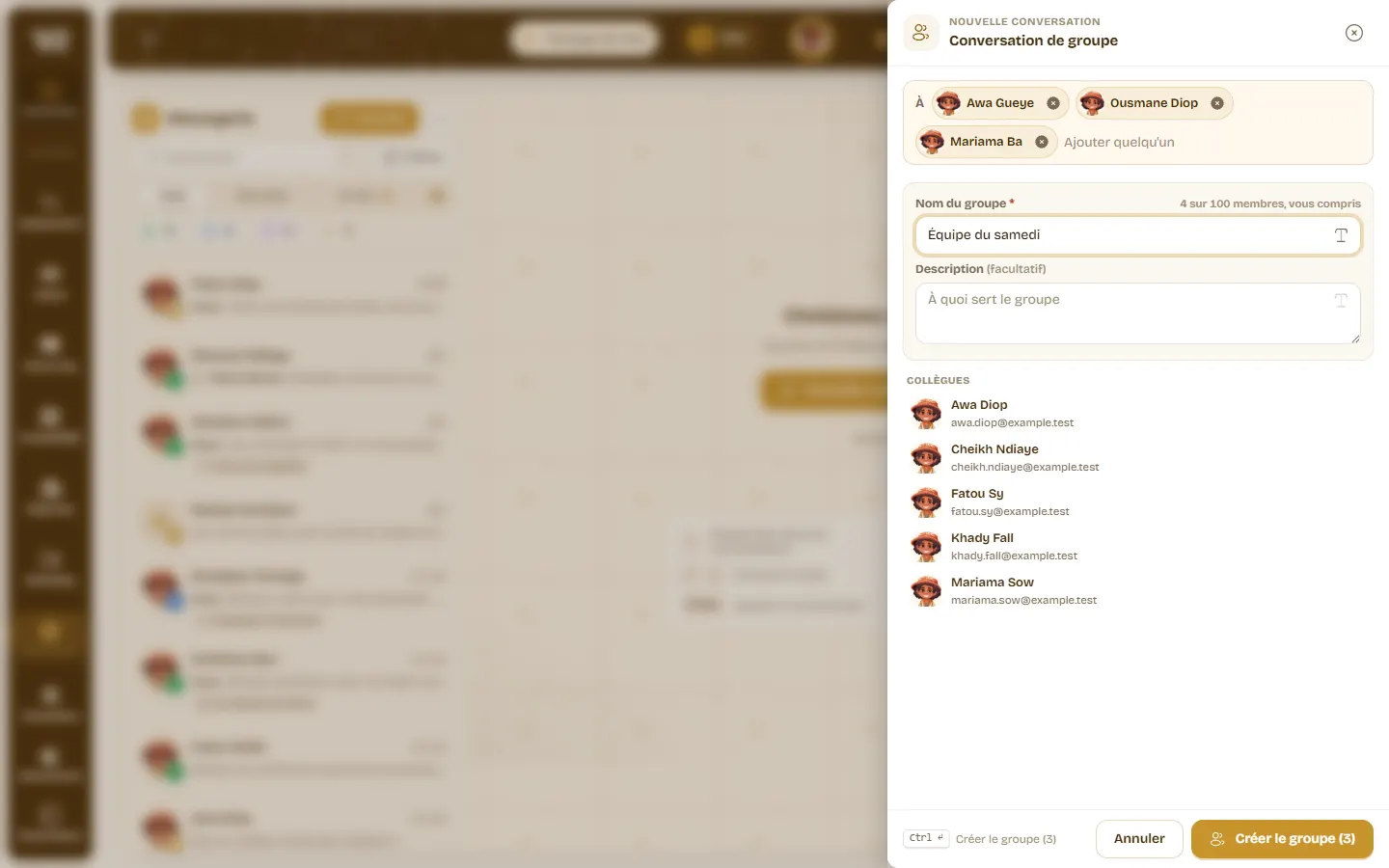
New opens a single field, “To:”. One colleague opens a direct message, several make a group, a customer shows the channels they can be reached on; for WhatsApp, the Inbox checks whether their number is registered there. The button says what is about to happen: “Write to Mariama”, “Create the group (3)”.
Everywhere: from any screen, and on your phone
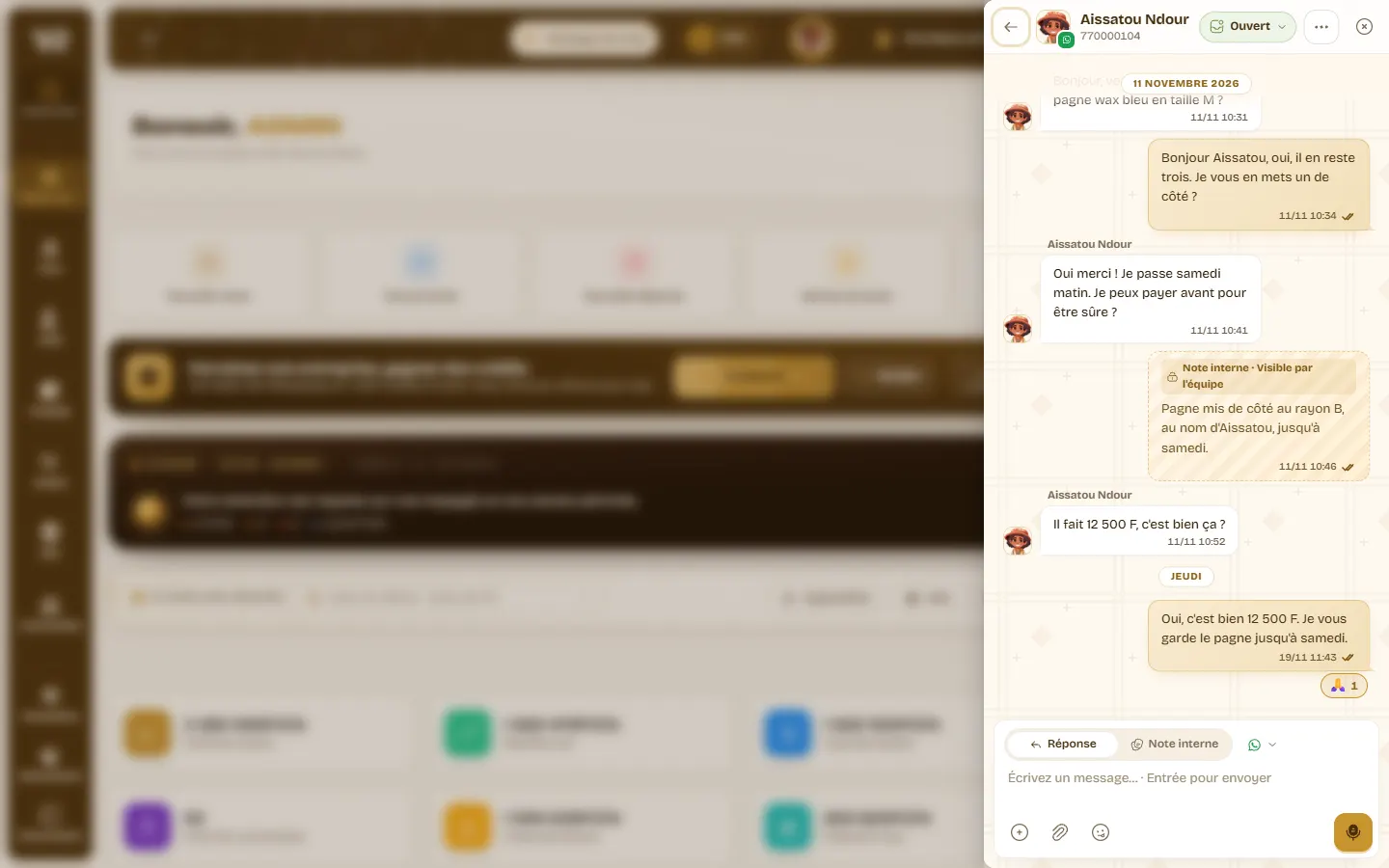
At the till when a customer writes? The Inbox button, in the dock at the bottom right, opens it over the page you are on: the list, the thread, Manage, export. “Full size” reopens the same thread on the Inbox page.
On a phone, the list then the thread open full screen, and Manage becomes a sheet you pull up with your thumb, with a bar at its foot: Reply, Take (or Reassign if the thread is yours), Resolve and More. A long press on a bubble opens reactions. Only the button sends: the Enter key starts a new line, so nothing goes out by mistake.
Everyone sets up their own Inbox in Settings, Inbox preferences: the background (Bogolan, Kente, Kuba…), density, the sounds for new messages and mentions, what deserves a notification, an email signature, and a summary every morning at 8 am. In Mute mode, the Inbox stays silent.
Trust: permissions, audit log, export and retention
The Inbox has its own permissions, checked by the server on every action. The built-in roles give you a starting point: everyone talks with colleagues; Sales staff see every customer conversation, answer, resolve and use commands; the Sales manager can also assign, tag, search and export across the whole inbox, and sees analytics; the Administrator sets up the Inbox.
A conversation’s audit log says who did what and when: assignments and reasons, statuses, channel switches, commands, exports. It records actions, never the text of messages. A PDF or CSV export stays available for 24 hours, to the person who asked for it only.
Retention is off by default. Switched on with a period of 12, 24 or 36 months (the setting also offers no limit), it removes conversations with no message for that long. Those linked to a sale (an invoice sent with /invoice, a Wurus Pay link, a sale mentioned in the thread) are anonymised; the others go to the Trash, where they can be restored for 30 days. A customer conversation cannot be deleted in one click.
Two days with the Inbox
A fabric shop in Dakar. Aïssatou asks on WhatsApp whether the blue wax fabric is still there in size M. Awa, a salesperson, takes the conversation, answers that three are left and notes for the team: “put aside in aisle B, until Saturday”. Aïssatou wants to pay before coming in: Awa types /payment, checks the 12,500 F and confirms. On Saturday, Ousmane serves her at the counter without asking anything, the note is in the thread, and he sets the conversation to Resolved.
A hardware store with three salespeople. The owner, administrator of the company, set first response to 20 minutes, 10 for the Urgent tag, and published a “To take” view everyone opens in the morning. A tradesman asks for a quote by email; “Deadline close” alerts the leads, Khady takes the conversation, sends the quote and sets it to “Awaiting customer”.
Getting started in a few steps
-
1
Connect the company’s WhatsApp number, in the Wurus WhatsApp settings. The empty inbox takes you there.
-
2
Set up the company in Settings, Inbox settings: deadlines, leads, escalation, channels, email signature.
-
3
Check the roles: who reads customer conversations, who answers, who exports.
-
4
Write three company templates: opening hours, address, delivery.
-
5
Open the Messages section of the customer area, if you sell online.
To see everything screen by screen, two free documents wait for you in the media library: the brochure “The Wurus Inbox”, for your team, and “The Waxtaan, the messaging atlas”, the complete guide (both in French). Waxtaan means “conversation” in Wolof. And to let the assistant help you, meet Biddew.
Can my customer see an internal note?
Can my customers reply by SMS?
Does Wurus share conversations out among my staff?
/assign.